Welder Qualifications Deeming from Formal Qualifications
WeldTrace will suggest whether a welder's existing qualification can be used for another WPS, based on the matching rules. The feature will help users review, assign, and manage deemed qualifications from the welder profile and then use those welders in projects without having to add WPQ records to the welders.
This workflow diagram will give you a brief overview of the welder qualification deeming process in WeldTrace.
Administering Deemed Qualifications (for Super Users and Account Administrators)
Use this section if you are responsible for enabling the feature, configuring the account settings, or controlling which users can assign and revoke deemed qualifications.
- Click the Dashboard --> Admin menu. You will see this tile "Deemed Qualifications" and the status will show "Enabled" if your account is enabled with this feature. If it says "Disabled" please raise a ticket and ask for the feature to be enabled;
- Open the Settings page to configure the Deeming feature for your account;
- You can view the history of changes made to the Deeming configuration or settings here;
- Turn the setting on if the account should use deemed qualification matching;
- See the list of available standards in the Standards Configuration section. Enable the standard if it should be used for deeming;
- Click the eye icon to view the deeming rules used for the standard. You will see the code reference, category, type and how these will be used to match qualifications for deeming;
- In the category, a "Gate" must match if a deemed qualification can be assigned;
- The other variables are allocated a percentage when evaluating a welder for a deemed qualification in the BYO WPS mode (see below);
- WeldTrace or BYO WPS mode:
- The deeming process will use the WT mode when both the source qualification and target WPS are created in WeldTrace;
- In the WT mode, the source and target qualifications must match all required variables before it can be assigned as a deemed qualification to a welder;
- Set the BYO match threshold based on your requirements. You can change the threshold percentage higher or lower, with a minimum set at 50%;
- Select Yes for the "Show Below-Threshold Matches" if users should see non-assignable results for review (however they cannot be assigned);
- In the Authorization section, select "Users with R&W permission to the Personnel menu can assign deemed qualifications to welders" to allow Account Users with write access to the Personnel menu to assign deemed qualifications;
- Select "Users with R&W permission to the Personnel menu can revoke deemed qualifications from welders" to allow Account Users with write access to the Personnel menu to revoke previously deemed qualifications;
- In the Continuity Tracking section, turn on "Count Toward Source Continuity" if welds completed using a deemed qualification should maintain the continuity of the source qualification. Turn off this button if a weld completed with a deemed qualification should not count toward source qualification continuity;
- See this tile for information on how this feature works;
- You can view the history of changes made to the deemed qualification settings here;

Super Users and Account Administrators can assign or revoke deemed qualifications at any time
Allocation of Deemed Qualifications to Welders
Use this section if you are responsible for managing the welders and if you are tasked with assigning and revoking deemed qualifications.
Run Deemed Qualification Evaluation
- Open a welder's details page and scroll to the Deemed Qualifications section. Click on Find Matches to initiate the Deemed Qualification Evaluation workflow;
- Click Proceed after accepting the warning message, that the Deemed Qualification Evaluation is a decision-support tool and that it does not replace formal qualifications;
Deemed Qualification Evaluation Results
- Review the summary counts showing the number of qualifications checked, WPS records checked, and potential matches found;
- Review each WPS row in the match results and expand the row to see the source qualifications evaluated for that WPS;
- R, F, C here indicate that the welder's formal qualifications support all the root, fill and cap passes of the target WPS. The numbers in green indicate a full match (must pass the match % as well as support all the processes to cover root, fill and cap passes), in orange a partial match (must pass the match % and support one of the processes to cover root, fill or cap passes), in red (do not match the % value set or do not match the gates). If you find numbers in green or orange, deeming assignment is possible;
- Expand the Source (WPQ) row to find the details of how it was evaluated against the target WPS's requirements and what the results are;
- The Mode is either BYO (bring your own welder qualification) or WT (welder qualification produced in WeldTrace). The evaluation differs based on the mode — must match a minimum percentage set for BYO qualifications and full match is expected for the WT qualifications;
- Check the Gates result first. A source qualification must pass the required gate checks before it can be assigned;
- Check the Match result to confirm whether the source qualification is assignable for the applicable mode. A percentage value will be shown for BYO qualifications and for WT qualifications you will see Full or Not full;
- The BYO match percentage is calculated based on the number of matches against the number of rules evaluated;
- If a qualification value doesn't match the WPS requirements, it is failed and is shown with a red cross in the results column. This will deduct a portion of the match percentage;
- If a qualification value is not available and the WPS doesn't specify a requirement, the deeming process will not penalise the match percentage. You will see a hyphen in the results column;
- In the screenshot above, there are 4 matches, 1 skipped and 1 with no match. So, the percentage calculation is 5/6 = 83%;
- Check the Covers column to confirm whether the source qualification covers Root, Fill, Cap, or only selected passes;
- Click Assign icon in the Action column to assign the source qualification as the deemed qualification for the target WPS;
- When both the source qualification and the target WPS are managed in WeldTrace, you will see WT for the mode;
- In WT mode, every required variable must match for the welder to be deemed qualified;
- This column will show the number of variables evaluated and the expanded row will show the results of each variable;
- The Covers and Action column will show the results if the qualification can be assigned;

Review the WPS not evaluated section if any WPS records were skipped.
WPS qualified to standards not covered by the WT deeming rules engine will appear in the list of skipped WPS.
If a welder is already formally qualified for a WPS, it will appear in this list
If a welder is already formally qualified for a WPS, it will appear in this list
Assignment of Deemed Qualifications
- Look for the Combined coverage banner when no single source qualification covers all required passes;
- In such cases, a button "Assign Combined" will be shown when the combined sources provide the coverage required for the WPS to be deemed qualified;
- Open the row and review which source qualification covers each pass;
- Confirm that Root, Fill, and Cap are covered by different qualifications;
- Once assigned, you will see the Assigned label appear in the banner row;
- You will see the "Deemed" label appear against each qualification that are used together for the combined assignment;
Review a Qualification with Missing Evidence
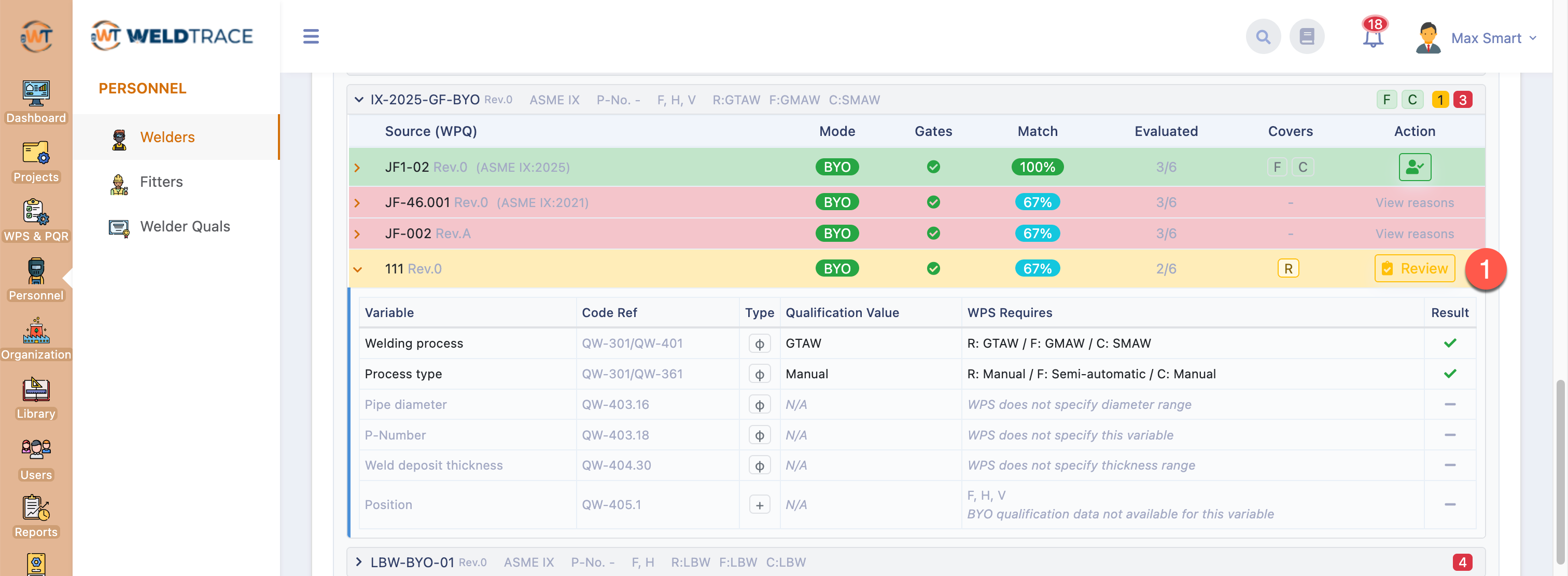 Deeming Welder Qualifications With Review - Step 1
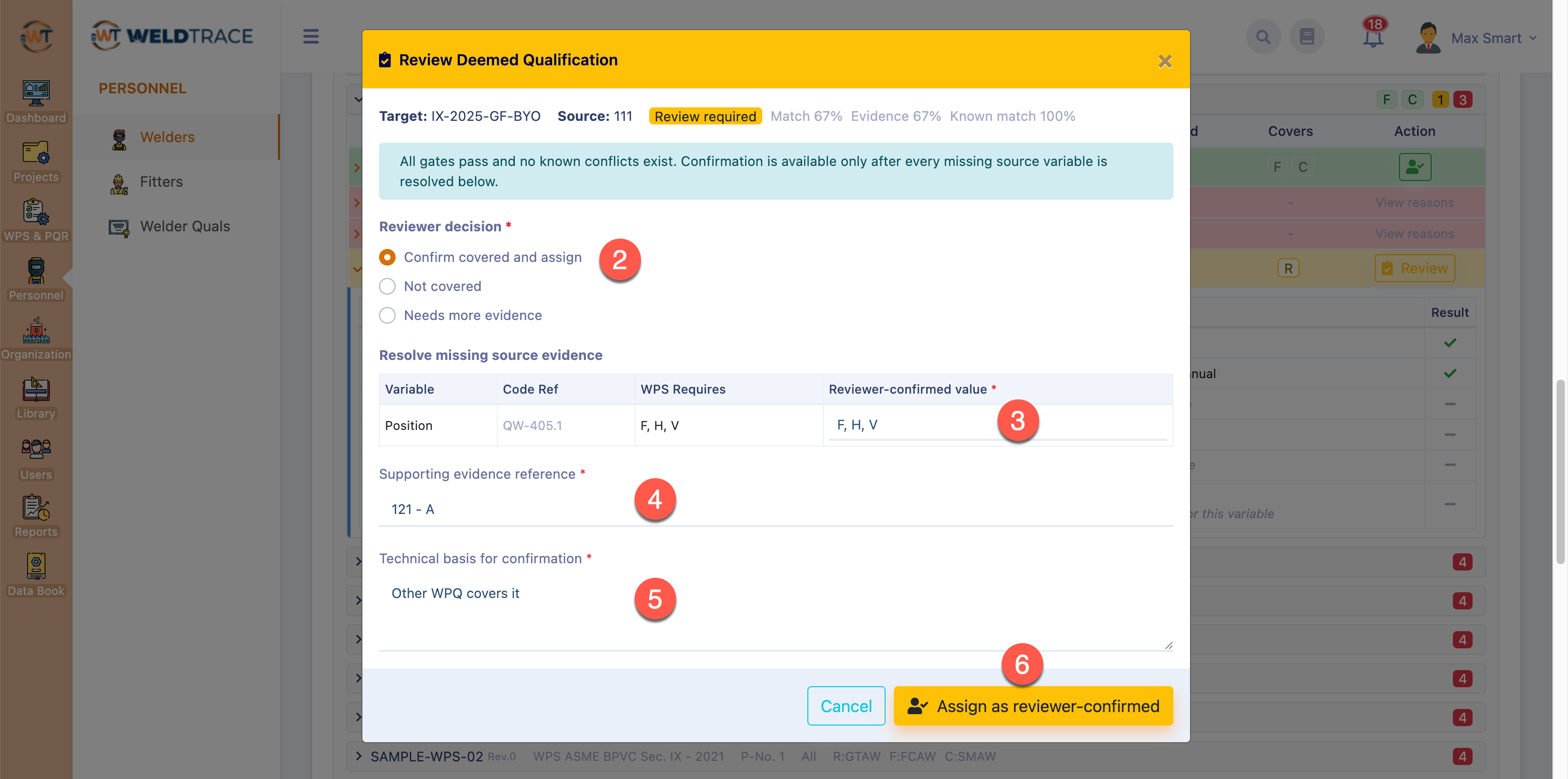 Deeming Welder Qualifications With Review - Step 2
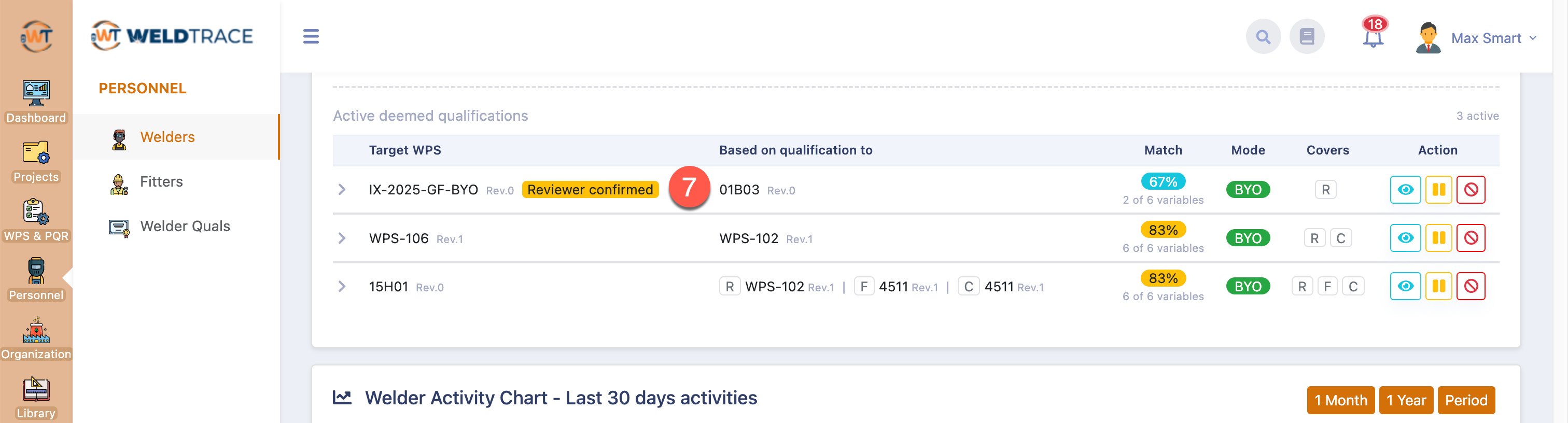 Deeming Welder Qualifications With Review - Step 3
- Where nothing conflicts but some evidence is missing from the source qualification, an amber Review required label appears in place of the Assign button;
- Choose Confirm covered and assign only where controlled supporting evidence resolves every missing value. Choose "Not covered" where the evidence shows the welder's qualified range does not reach the target. Choose "Needs more evidence" where the records available are not sufficient to decide;
- Enter the verified value in the Reviewer Confirmed Value field;
- Enter a reference to the evidence here;
- Enter the technical basis for the decision;
- Click the "Assign as reviewer confirmed" button to assign the Deemed qualification;
- In the Active Deemed Qualifications list you will see the newly assigned Deemed qualification with the label "Reviewer confirmed" next to it;
View Deemed Qualification Details
- In the Qualifications tile, you will see a small bubble on top of the qualifications count with a number indicating the number of deemed qualifications;
- In the Deemed Qualifications section, you will notice a count of the number of deemed qualifications assigned to the welder;
- Click "Find Matches" to run the deeming workflow to find more matches and assign as deemed qualifications to the welder;
- View the results of the deeming process for audit purposes;
- Pause the deemed qualification from being used;
- Revoke the deemed qualification. Revoked qualifications will still appear in the deemed qualifications list with the line struck out. Welds performed using revoked qualifications will still be maintained without any changes. However, the welder's deemed qualification will disappear from the list of available qualifications against a WPS in the weld log. A revoked qualification may be evaluated again and deemed by running the deeming workflow another time;
- See the full breakdown of the deemed qualifications (see 8 & 9 below);
- A window will show the full breakdown of the results of the deeming workflow and if it is a combined qualification;
- Open the row to see the results of the evaluation against the variables;
Check this article for assignment of deemed qualifications in the weld log: https://support.weldtrace.com/portal/en/kb/articles/weld-log#Weld_Log_for_Deemed_Welder_Qualifications

Check this article for continuity tracking for deemed qualifications used in projects: https://support.weldtrace.com/portal/en/kb/articles/welder-continuity#Welder_Continuity_Report_for_Deemed_Qualifications